
No App Download Needed.
Works Right in Your Web Browser.
You don't need to install anything from the App Store or Google Play. Customers scan a QR code to order from their phone, and kitchen staff handle orders on any tablet.
How It Works for Everyone
Whether ordering at the table or preparing tickets in the kitchen, everything runs right in your browser.
Quick How-To Guide
Three simple steps to order, fulfill, or manage on Deebo.
For Customers
How to Order in 3 Steps
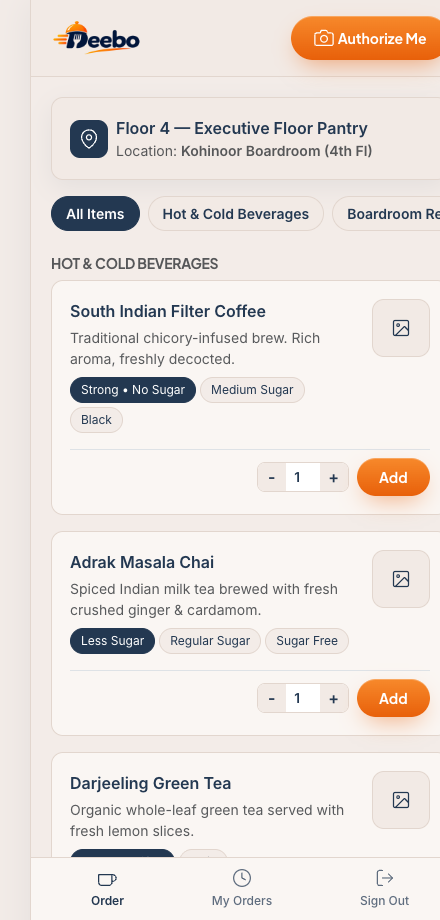
Open your phone's camera and point it at the QR code on your table, desk, or counter.
Tap the link to open the menu in Safari or Chrome. Choose your items, select options, and add to cart.
Tap Place Order. Follow live updates on your screen until your food or drink is ready.
For Kitchen Staff
How to Run the Kitchen Screen
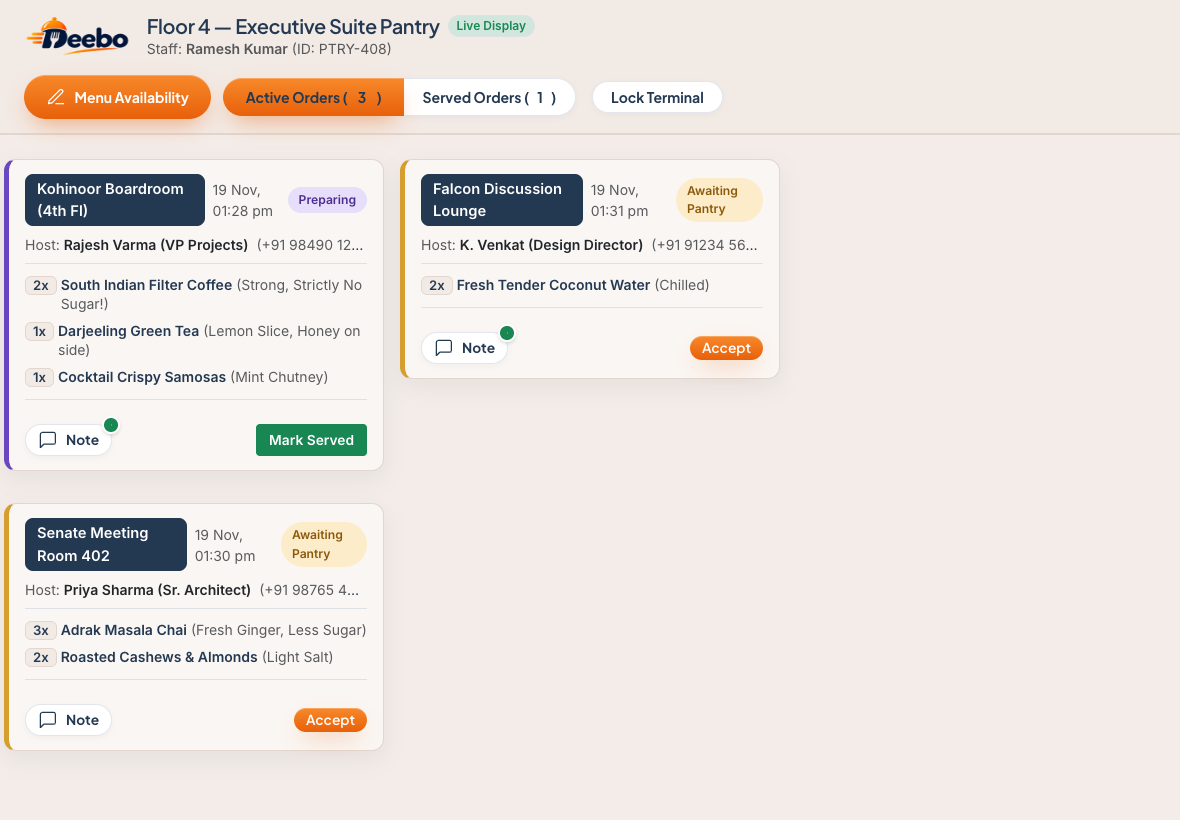
Go to deebo.in/staff/login on your iPad, Android tablet, or computer browser.
Enter your staff PIN. Make sure the sound is turned on so you hear order chimes during your shift.
When an order rings, prepare the items and tap "Ready" with one touch to notify the customer.
For Admins
How to Manage Operations
Go to deebo.in/login on your laptop, desktop, or mobile phone.
Add your tables, rooms, or counters, and download ready-to-print QR codes.
Add dishes, set prices, turn off sold-out items, and watch your daily sales come in.
Prefer a shortcut icon on your home screen?
An app is never required. But if you or your staff want to open Deebo with one tap from your home screen, you can easily save it like an app without visiting an app store:
Try Deebo Today
Zero app downloads for your customers. Zero special hardware for your staff.